Skip to content
AutoUpdate Coverage

Guides

Vehicle software guides for everyday owners

AutoUpdate Coverage provides informational resources about vehicle software only. We are not an insurer, carrier, underwriter, agent, broker, or marketplace, and nothing here is insurance advice.

Vehicle software

Today's vehicles run many small computers called ECUs. Software controls everything from climate settings to driver assistance displays, and manufacturers can refine it over time.

  • Updates may be delivered over the air or applied by a dealer, depending on the system and manufacturer.
  • Release notes describe what changed. Reading them helps you know what to test after installation.
  • Not every vehicle supports every feature. Compatibility depends on hardware, model year, and region.

Infotainment

The infotainment system, often called the head unit, runs your center screen, audio, navigation, and phone projection. It is the part of the vehicle most likely to change with updates.

  • Phone projection features like Apple CarPlay and Android Auto rely on both the vehicle software and your phone software.
  • Map data and navigation features may update separately from the main vehicle software.
  • If menus change, use the settings search or owner manual to find relocated options.

Connected services

Connected services link your vehicle to the internet and to companion apps. They power remote lock, climate preconditioning, location, and sometimes phone-as-key.

  • Many connected features require an active manufacturer account and may involve trial periods or subscriptions.
  • Review the notification and privacy settings in your manufacturer app so you only receive the alerts you want.
  • If you sell or transfer a vehicle, remove it from your account and reset in-vehicle profiles.

Software terminology guide

OTA (over-the-air)
Software delivered wirelessly to the vehicle without a dealer visit.
ECU
Electronic control unit. A small computer that manages a specific vehicle system.
Head unit
The main infotainment computer behind your center display.
Firmware
Low-level software built into a hardware component.
Release notes
The manufacturer's description of what an update changes.
Driver profile
Saved seat, mirror, display, and audio preferences linked to a driver.
Phone projection
Mirroring phone apps to the vehicle display, such as Apple CarPlay or Android Auto.
Telematics
The vehicle's cellular connection used for connected services and data.

Update preparation checklist

Always follow your owner manual and the instructions on your vehicle screen first.

  1. Read the release notes and estimated install time.
  2. Park in a safe, well-ventilated place where the vehicle can stay idle.
  3. Confirm the battery level meets the manufacturer recommendation.
  4. Connect to a stable Wi-Fi network if your vehicle supports it.
  5. Note driver profile, display, and audio settings you want to keep.
  6. Remove time-sensitive plans so you will not need the vehicle mid-install.
  7. After installing, test cameras, phone pairing, and steering wheel controls.

Articles

Empty highway at blue hour seen from inside a car

Vehicle software

Planning an install window that fits your week

Most over-the-air updates arrive in two phases: a background download while you drive or park, then an install that usually requires the vehicle to stay parked. The install phase is the one to plan around.

Look for the estimated install time on the update screen or in your manufacturer app. Many owners schedule installs overnight or during a weekend morning when the vehicle is not needed.

Park somewhere with a stable signal if the update is still downloading, and avoid starting an install when you might need to leave on short notice.
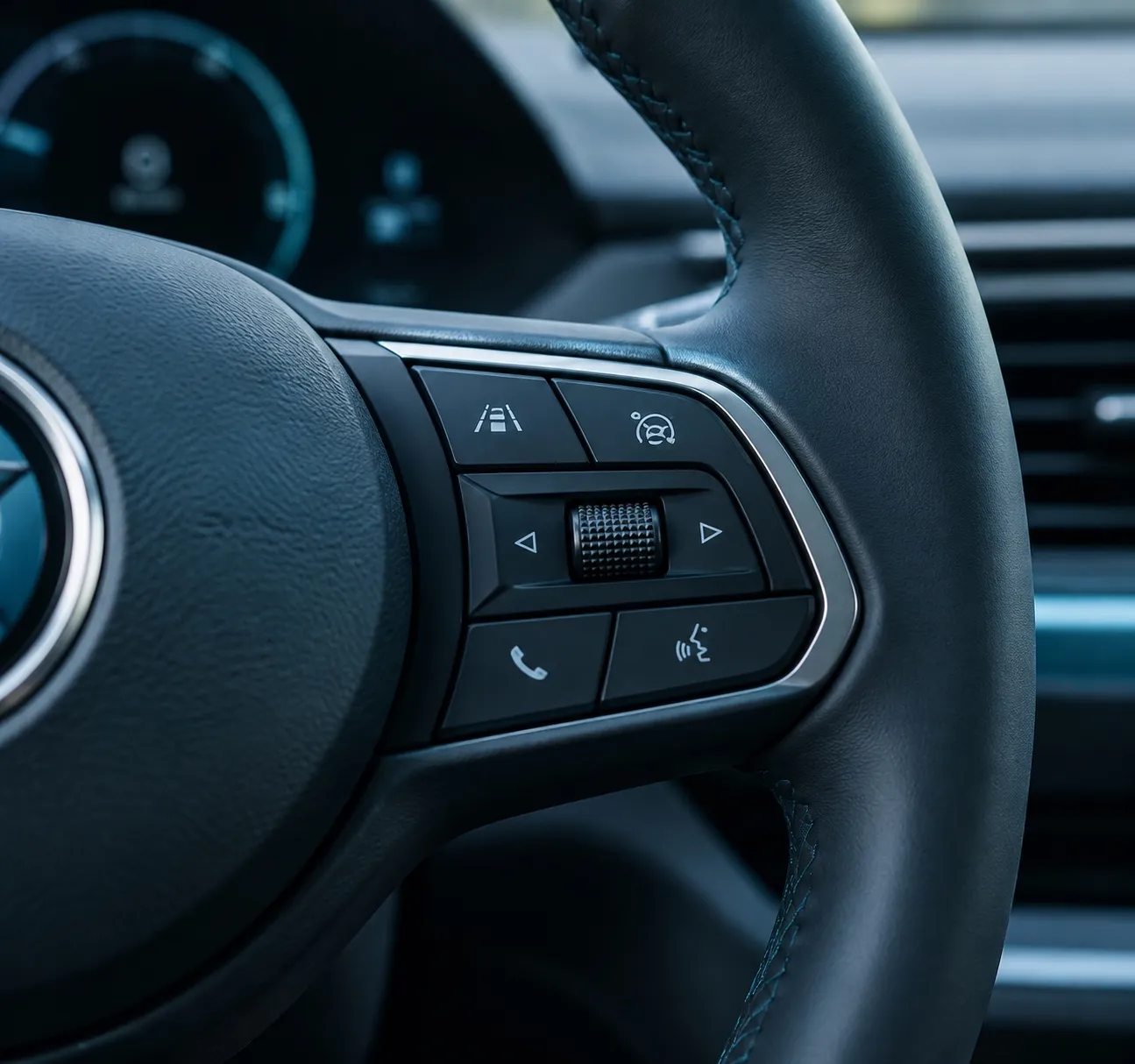
Close view of steering wheel buttons in a modern car

Infotainment

When steering wheel controls behave differently

Infotainment updates sometimes remap steering wheel buttons, change voice assistant wake behavior, or add new shortcuts.

After an update, take a minute while parked to press each control and confirm volume, track, call, and voice functions work as expected.

If something seems off, check the release notes or settings menu for a customizable button option before contacting your dealer.

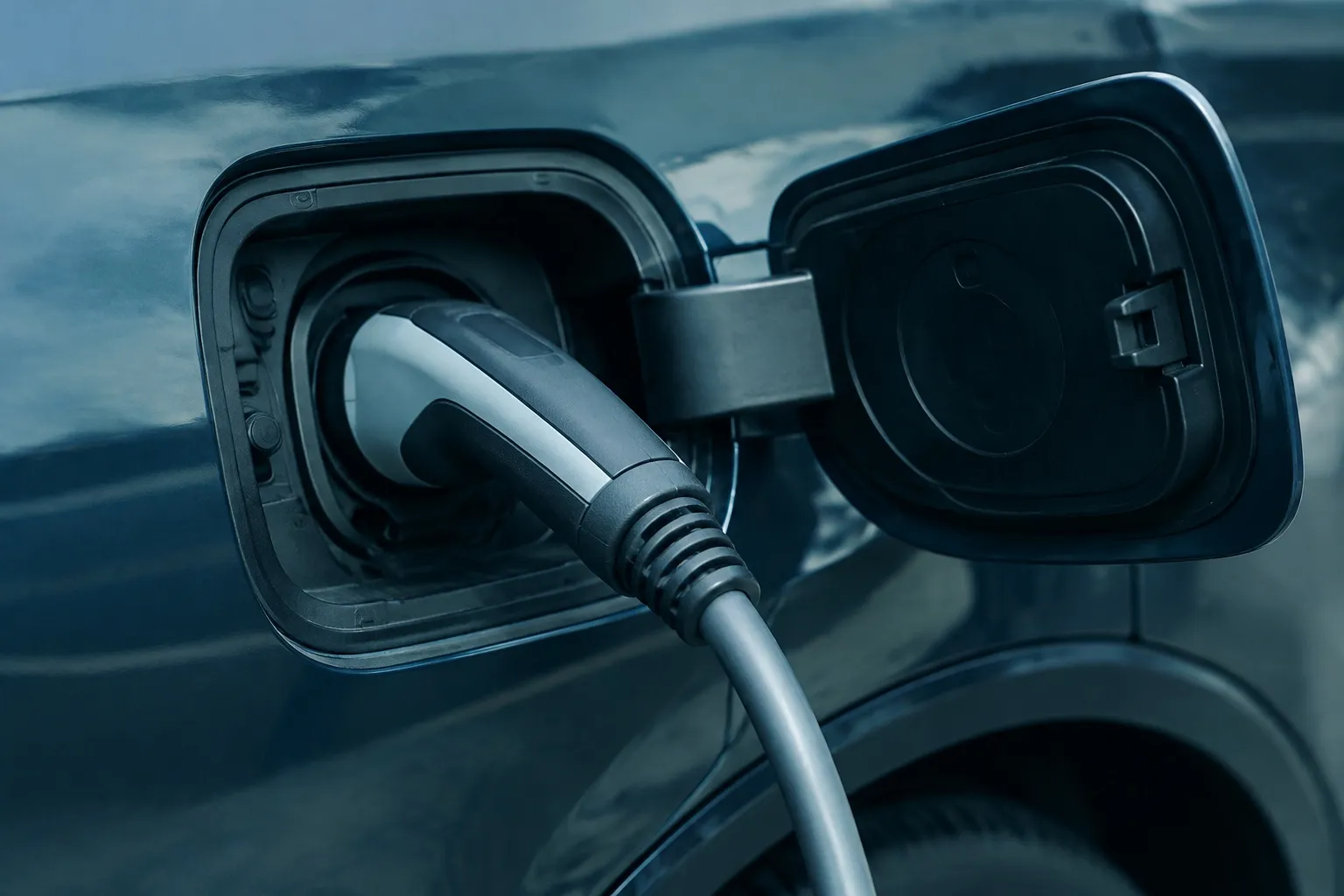
Car charging port open with a cable plugged in

Connected services

How charging settings and software updates interact

Electrified vehicles often receive updates that refine charging behavior, departure scheduling, or companion app features.

Some manufacturers recommend a minimum battery level before installing. Keep the vehicle plugged in only if your owner manual says that is supported during installs.

After the update, confirm your scheduled charging times and charge limit are still set the way you prefer.

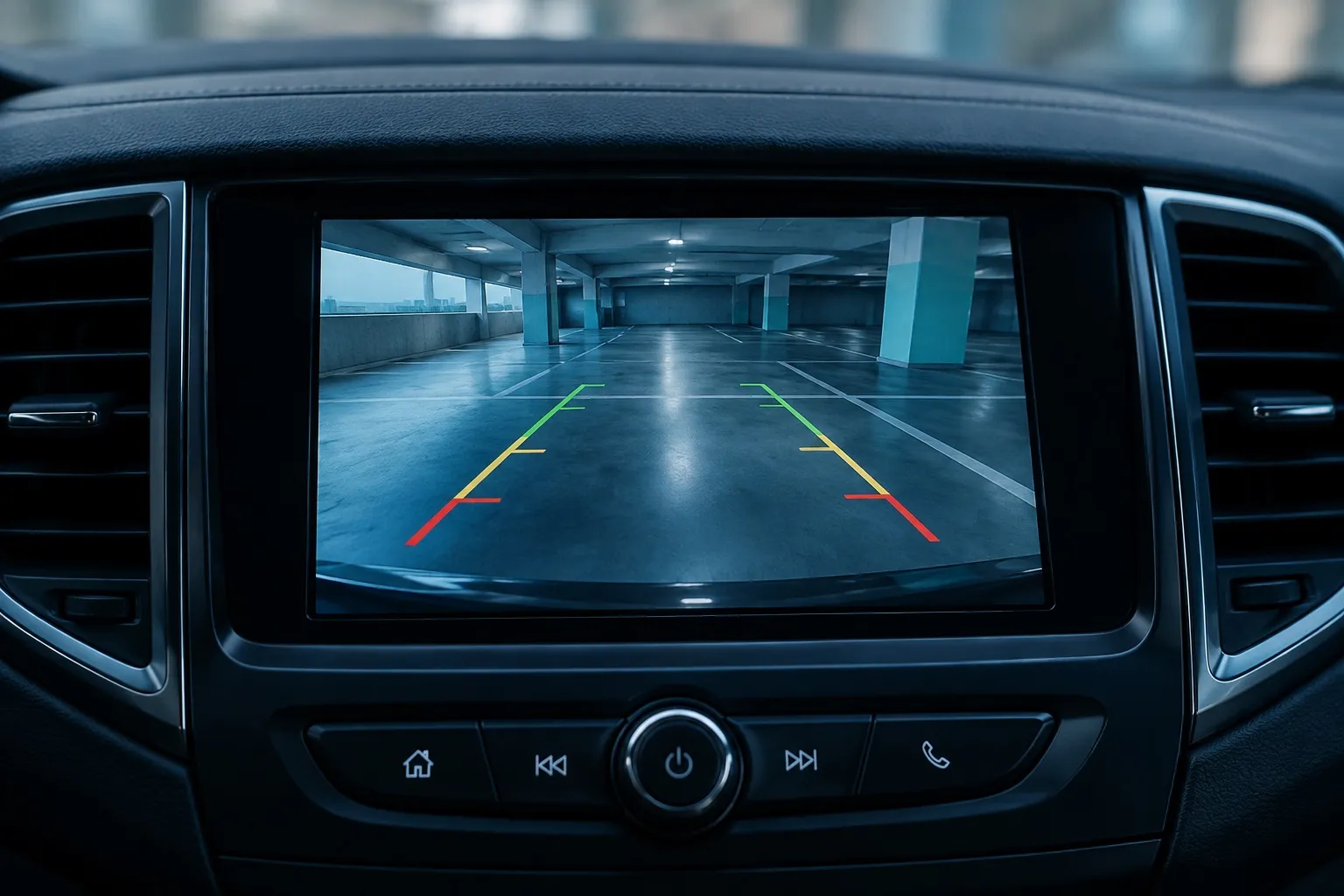
Rear view camera display on a car dashboard showing a parking garage

Vehicle software

Quick display and camera checks after an update

Displays and camera feeds are among the most visible parts of vehicle software. After an update, shift into reverse while parked to confirm the camera view appears promptly.

Check that brightness, night mode, and units of measure still match your preferences.

Note any warning messages and consult your owner manual or dealer if they persist.

Want new guides by text? It's optional.

Get Vehicle Tech Updates
Get updates